Showing posts with label Tutorial. Show all posts

How to Create a Top Lists Crypto Exchange Widget Blogger

The following is a tutorial about how to install the Top Lists Exchange Cryptocurrency widget on the blog.
When discussing about crypto currency, there was an extraordinary curiosity when I saw the quite fantastic exchange rate of this crypto currency against existing conventional currencies, until finally it attracted me to look for information about this crypto currency. Starting with a sheet listing the crypto currency exchange is what makes the curiosity that emerged.

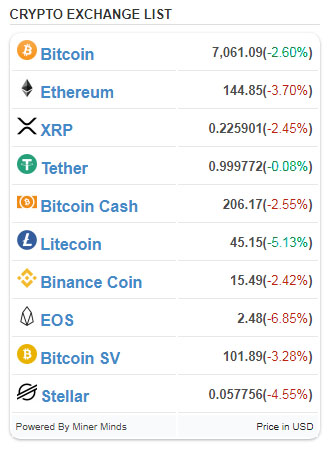
Well, this time you can look to the sidebar side of this blog, there is a display that shows the value of crypto currency exchange look like exchange sites. This widget can function as an attraction, especially for those who are new to our blog or are very unfamiliar with the crypto currency. This can cause a sense of curiosity or can always monitor the development of this crypto currency.

Because on this blog it is quite difficult to find a widget to display this list of crypto currencies, finally I tried to make it simple. In this widget will display only a few types of crypto currencies, if all will be displayed then it will make the appearance of our blog filled with this widet only because there are so many types of crypto currencies. Therefore this widget is enough to only display 10 types of crypto currencies including Bitcoin, Ethereum, XRP, Tether, Bitcoin Cash, Litecoin, Binance Coin, EOS, Bitcoin SV and Stellar. The following is a tutorial on how to install the Top List Cryptocurrency Exchange widget for blogs:
  • Login to blogger
  • On the left side, select the "Layout" menu
  • In the sidebar, select "Add Gadgets"
  • Then choose "HTML / Javascript"
  • Enter the code below
<div class="textwidget custom-html-widget">
<script type="text/javascript" src="https://cdn.jsdelivr.net/gh/downloadgila/minerminds/minerminds-chart.js">
</script>
<div class="textwidget custom-html-widget">
<div class="coinlore-list-widget" data-mcap="0" data-mcurrency="usd" data-top="10" data-cwidth="100%" data-bcolor="#fff" data-coincolor="#428bca" data-pricecolor="#4c4c4c" style="width: 100%;"> Loading...</div>
</div>
</div>
  • click Save
  • then Save arrangement
  • Done
Your blog now has a cryptocurrency exchange look like exchange or mining cloud sites.

Hopefully this tutorial can provide benefits for all of us, as well as beautify blog or maybe make it look even more professional blog.
Thank you

The Easy and Fast Way To Earn On Coinpot.co

Welcome to Miner Minds, this time I try to share about easy ways to increase income at Coinpot.co. Before that, Coipot.co was a MicroWallet site that served as a bridge to hold coins that you could collect from various coin claim sites available. For Coinpot.co itself provides several Cryptocurrency facilities such as : Bitcoin Core, Bitcoin Cash, Dogecoin, Litecoin, Dash coin.

In addition, in Coinpot.co, we can also get 3 free tokens when we claim every coin that is obtained from faucet claims sites automatically and this token can later be exchanged or converted to the currency we want. For the value of 1 token the same as 1 satoshi Bitcoin.

Click here for Join on COINPOT.CO

The following is the Dashboard display on the Coinpot.co site

Well, this time I will share an easy way to claim faucet sites provided by Coinpot.co. Sites provided by coinpot.com include :

So basically if we want to claim each of these sites, then we have to open one by one the site, it will be too complicated so that it might burden the performance of our PC / Laptop or smartphone because we have to open multiple tabs in the browser.

So here I want to share how to easily claim these sites easily, quickly, and we can monitor the time. because to claim each site takes a claim every 5 minutes.

The easy way is to use the application on your Smartphone. So many applications are provided on Android / iOS, please choose according to your taste, but here I will recommend an application called "Easy Faucet Claim".


Here is how it looks:

  • You can register your account only with a username and password.
  • Then you can enter your coinpot.co account so you can monitor your income in this application. You can also enter other Microwallet here like Faucethub, and others.
  • For the trusted faucet tab, you can enter all the sites provided by coinpot.co earlier. This section also provides the Freebitco.in and Freedoge.co.in sites.
  • For custom faucet tabs, you can enter other sites to claim faucets such as the auto claim faucet sites provided by Faucethub or other faucet claims sites.
  • Now, after you login at each of these sites, you can simply click on each of these sites to claim each coin that is obtained without having to open a new tab as when opening these sites in a browser. In this app you can also monitor the time when you last claimed.

In this application you can also set a time notification notification (Smart Notification) that can remind you that it's time you claim these sites. You can set these settings in minutes or hours. So it is very helpful to us that we often forget to claim these sites.

Here, which is quite special, there are also options about referral links, so you can summarize all your referral links on one page, then you can easily share your links to all social media.

To get this application, please download it on Playstore via the button link below:


Hope it is useful, thank you

How to install a donation button on the Blog

This time Miner Minds will try to share a way to install a donation button on blogger. Since the development of the era of technology, blogging and payments with virtual currencies are increasingly rampant, many methods are used to get attention to income.

As this development, Miner Minds will be how to install a donation button on the blog with the currency of Bitcoins. Here is an example of installing the Bitcoin donation button :
(Click the donation button below)
Please Donate To Bitcoin Address : [[address]]
Donation of [[value]] BTC Received. Thank You.
[[error]]
Here's how to install a donation button on your blog's Sidebar:
  • Login to Blogger
  • Go to Theme Section at left list
  • Click "Edit HTML"
  • Press CTRL + F to search, then look for the code </head>
  • Put this javascript code below </head>
<script type="text/javascript" src="https://ajax.googleapis.com/ajax/libs/jquery/1.8.0/jquery.min.js"></script><script type="text/javascript" src="https://blockchain.info/Resources/js/pay-now-button.js"></script>

  • Press "Save Theme"
  • Next go to Layout Section at left list
  • Click "Add Gadget"
  • Select "HTML / Javascript"
  • Copy the script below
<div style="font-size:16px;margin:0 auto;width:300px" class="blockchain-btn"
data-address="1JQaM6JBQRSwFyUmo4MDPuzndYzegxbuUN"
data-shared="false">
<div class="blockchain stage-begin">
<img src="https://blogger.googleusercontent.com/img/b/R29vZ2xl/AVvXsEhDWKw9CDM2qnKv4eA_a1vRTMwRr9unfVK90kdlOj48_EWU3n89_FsEx_7uX2rmWgGPRqoO94TazrF6-Wzr96q5b6zwPmiTw0qsQYKcX3ZnbkSr666_v885ZjKJlLhpCCSYznSowHo1sy0/s1600/DONATION+MINERMINDS.png"/>
</div>
<div class="blockchain stage-loading" style="text-align:center">
<img src="https://blogger.googleusercontent.com/img/b/R29vZ2xl/AVvXsEgAM_NAm8OCH5wic2CaOMQ3jDkwowvBnQCLdfzzhq0MWhT4ezrRx4cCf_3eL-nuH5JuhjsthGzkple2ilF0fLw3immSiE5K_427MpB-tpSLBI4dJ73ukAeKr1lgnbolgEaLJvgHaeX7XK8/s1600/BITCOIN-MINERMINDS-BLOGSPOT.gif"/>
</div>
<div class="blockchain stage-ready">
<p align="center">Please Donate To Bitcoin Address: <b>[[address]]</b></p>
<p align="center" class="qr-code"></p>
</div>
<div class="blockchain stage-paid">
Donation of <b>[[value]] BTC</b> Received. Thank You.
</div>
<div class="blockchain stage-error">
<font color="red">[[error]]</font>
</div>
</div>

  • Paste it into the "HTML / Javascript" gadget
  • Click "Save"
Now, the donation button is already installed on your blog.
You can also place it in a blog post
May be useful

 
Powered by Blogger.